

Church cash control

From the offering count to the bank deposit.

The service total, cash still on hand and a bank deposit are different figures. Keep their records connected so the finance team can explain where the money is.

View pricing

14 days · No card · No charge at signup

See an example

A worked exampleUSD

Cash on hand after the bank deposit.

Compare physical cash and records at the same cutoff.

Opening balance
USD 150.00
Income
+ USD 500.00
Expenses
− USD 120.00
Deposit to the bank
− USD 400.00
Expected cash on hand
USD 130.00
Cash counted
USD 128.00

Difference to investigate-USD 2.00

This comparison is manual. Check payments, dates and receipts before adjusting the records.

Built for your church
Church teams handling cash offerings, small purchases and deposits.

In practice

Check one cash account and its supporting records.

Try a received offering, a cash expense and a deposit. Review the account and confirm that the offering appears as income only once.

Preserve the count and the cash movement

Keep the offering count with the amount received. Record a cash payment separately with its receipt. When cash is deposited, record the move to the bank as a transfer rather than another donation.

  • Retain the count and deposit reference.
  • Identify cash payments with their supporting documents.
  • Keep transfers separate from income and expenses.
Investigate a difference before changing the books

Compare counted cash with the cash-account record at the same cutoff. Check a missing receipt, a payment date or a duplicate entry before adjusting an amount. The example shows a manual comparison, not automatic cash verification.

  • Use the same account and cutoff for the review.
  • Keep an explanation of any difference.
  • Use the report and supporting records when handing over cash.
Receipt scanner

From receipt to record, without retyping each detail.

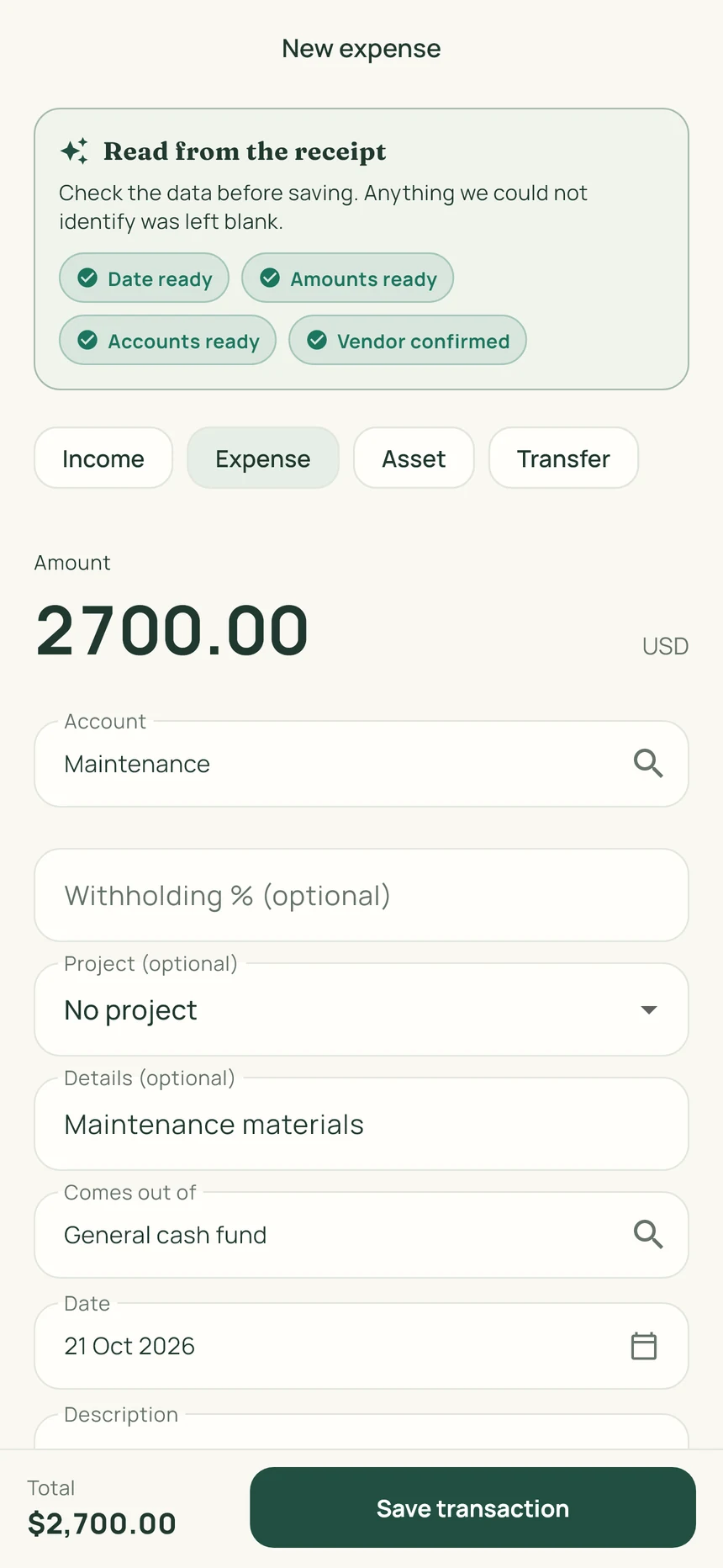
ContaIglesia suggests the receipt date, items and amounts. Review what it read, correct anything needed and save the photo with the transaction.

  1. 01

    Photograph the receipt

    Materials, a utility bill or a church purchase.

  2. 02

    Review the details

    Check the date and amount. Correct or complete anything needed.

  3. 03

    Keep the supporting photos

    Save up to three photos with the transaction: the receipt, invoice or an image of the purchase.

Real ContaIglesia screen in English: review of a USD 2,700 maintenance expense, with account, date and save buttonView the full image
Receipt review in English · USD demonstration

On the go, your phone. At the office, your computer.

Start your trial on the web. Then sign in on iPhone or Android with the same account.

ContaIglesia

Try it with your church’s accounts.

Record a transaction, attach its receipt and prepare a report. Decide after using the product.

Included

  • Up to 5 sets of books under one administration
  • 1,200 monthly credits for receipt scanning
  • Monthly view, transactions and balances
  • Separate reports per area
14 days free

No card. No charge at signup.

Then, if you decide to continue
USD 9per month
USD 90per year · save 2 months

Base prices in USD. Stripe may offer payment in your local currency; you will see the currency and final amount before confirming. App store prices may vary.

See the full plan

Before you start

Does a deposit count as another offering?

No. A deposit moves money already received from cash to the bank. Record it as a transfer so the original offering is not counted twice.

Can the software verify physical cash automatically?

The example is a manual comparison. A person counts the cash and compares it with the cash-account records; the software does not verify the physical notes and coins.

Where can we keep the count sheet and receipt?

A transaction can hold up to three supporting photos. Keep the relevant count, purchase receipt or deposit image with the corresponding entry.

Do I have to pay to try it?

No. The trial lasts 14 days and requires no card. At the end, you decide whether to subscribe.

Can I use it for a project or ministry?

You can separate the accounts for a building project, ministry or campus and organize its transactions and receipts.

Can we use a phone and a computer?

Yes. The same account works on the web, iPhone and Android. Start your trial here, then sign in to the app.

Does it replace an accountant?

No. It organizes records and reports for your board and accounting professional to review.

Need help getting started?

Talk to support